
escDevelopWorks™ Is Officially Here
Region 4 professional development now has a new home.
Use escDevelopWorks™ to explore professional development opportunities, register for sessions and events, access your learning history, view certificates, and manage your Region 4 professional learning in one place.
Important Account Information
All users must create a new escDevelopWorks™ account before signing in.
Previously registered for Region 4 professional learning?
Create your account using the same email address you used before. This allows Region 4 to connect your new account with your existing registrations, certificates, CPE records, and professional learning history.
You will also create a new password with at least 14 characters to meet updated security requirements.
New to Region 4 professional learning?
Create a new account beginning August 31 to get started.

We’re Here to Help
HELP CENTER
Need help with your escDevelopWorks™ account, registration, certificates, or a technical issue? Our Help Center is here to connect you with the right support.
Need more immediate assistance? Call Region 4 Registration Services at 713.744.6326.
Get Started with escDevelopWorks™

Create Your Account
All users need a new escDevelopWorks™ account. Returning users should use the same email address they used previously.
Explore Professional Development
Search Region 4 professional development opportunities, view session details, and register directly through escDevelopWorks™.
Manage Your Learning
Access upcoming registrations, QR codes for check-in, certificates, evaluations, transcripts, and professional learning history from your account.
Learn escDevelopWorks™ Your Way
Explore video tutorials and quick written guides to help you navigate escDevelopWorks™.
Getting Started
Find Professional Learning
Register & Participate
Online Learning
Help & Support
Common Questions
Now that escDevelopWorks™ is available, we’ve gathered answers to common questions to help you get started. Browse by topic below or expand any question to learn more.
General
Is escDevelopWorks™ replacing escWorks®?
Yes. escDevelopWorks™ is now Region 4’s professional learning platform, building on the trusted foundation of escWorks® while providing a more modern and intuitive experience.
Who should use escDevelopWorks™?
escDevelopWorks™ is designed for educators, administrators, district and campus staff, professional learning participants, and organizations that participate in Region 4 professional learning.
Timeline and Migration
When is escDevelopWorks™ available?
The new Participant Site and Management Suite Admin Site are now available. The escWorks® platform is scheduled to retire in August 2027, at the close of the academic year.
Will I need to create a new account?
Yes. All users must create a new escDevelopWorks™ account before signing in.
Returning users should use the same email address they used previously so their learning history and records can be connected. All users will create a new password with at least 14 characters.
Are my current registrations available in escDevelopWorks™?
Yes. Upcoming sessions, completed sessions, evaluations, certificates, and professional learning history are connected to your account when you create your escDevelopWorks™ account using the same email address you used previously.
I registered in escWorks®, but don’t see it in escDevelopWorks™. What should I do?
Select the Refresh option from your Registration History to synchronize your existing registrations with escDevelopWorks™.
Login and Security
How do I log in if I already have an escWorks® account?
Create your new escDevelopWorks™ account using the same email address you previously used for escWorks®.
Using the same email address helps connect your existing registrations, certificates, CPE records, and learning history to your new account.
You will also be asked to create a new password with at least 14 characters.
Registration and Check-In
How does QR code check-in work?
Your escDevelopWorks™ registration confirmation email includes a personalized QR code. You can scan it directly from your mobile device or print it at a kiosk when you arrive at Region 4 McKinney Conference Center. Simply scan the QR code at the tablet outside your session room to check in.
What if I don’t have my QR code with me?
No problem. You can access your QR code anytime from your Registration History in escDevelopWorks™, use the QR code in your confirmation email, or print a badge at an on-site kiosk before your session.
How does check-in work for multi-day sessions?
You’ll scan your same QR code at the beginning of each day to record attendance for that day’s session.
What do I need to do if I am paying with a purchase order?
If you are using a purchase order to pay for your registration, please have a copy of the purchase order ready to upload during the checkout process in escDevelopWorks™.
How do I cancel a registration?
Visit your Registration History, select the session you’d like to cancel, and choose Cancel Registration. Registrations can be canceled as long as you’re within the event’s cancellation window.
Certificates and Transcripts
Will I still receive certificates for completed sessions?
Yes. Once your attendance has been recorded and any required evaluations have been completed, your certificate will automatically become available in your account.
Can I still access my previous certificates and learning history?
Absolutely. Your certificates, transcript, completed sessions, and professional learning history are connected to your escDevelopWorks™ account when you use the same email address you used previously.
AI Search and Personalization
How does the AI-powered search work?
AI-powered search allows you to search using everyday language. For example, you might ask, “Show me leadership development trainings a school nurse would benefit from.” escDevelopWorks™ also recommends learning opportunities based on your previous activity. You can turn off personalized recommendations at any time in your profile settings.
Is escDevelopWorks™ available in other languages?
Yes. A built-in language translator is available from the upper-right corner of the site, allowing users to navigate the platform in numerous languages.
Accessibility
Are accessibility features available?
Yes. Accessibility support is built into the platform and can be accessed from the bottom-right corner of the site.
Communication and Support
How do I get help or report an issue?
Use the Contact Us option on the escDevelopWorks™ site, email escdevelopworkshelp@esc4.net, or chat with our AI-enabled chatbot.
Will I be notified about community board discussions?
Community discussions currently show as in-app notifications when you log in rather than as multiple emails. For time-sensitive updates such as schedule changes or cancellations, staff can email all registered participants directly through the system.
What is escDevelopWorks™?
escDevelopWorks™ is the new home for Region 4 professional learning. Whether you are registering for a session or pulling up your certification history, it makes it easy to manage your professional learning all in one place.
escDevelopWorks™ key features:
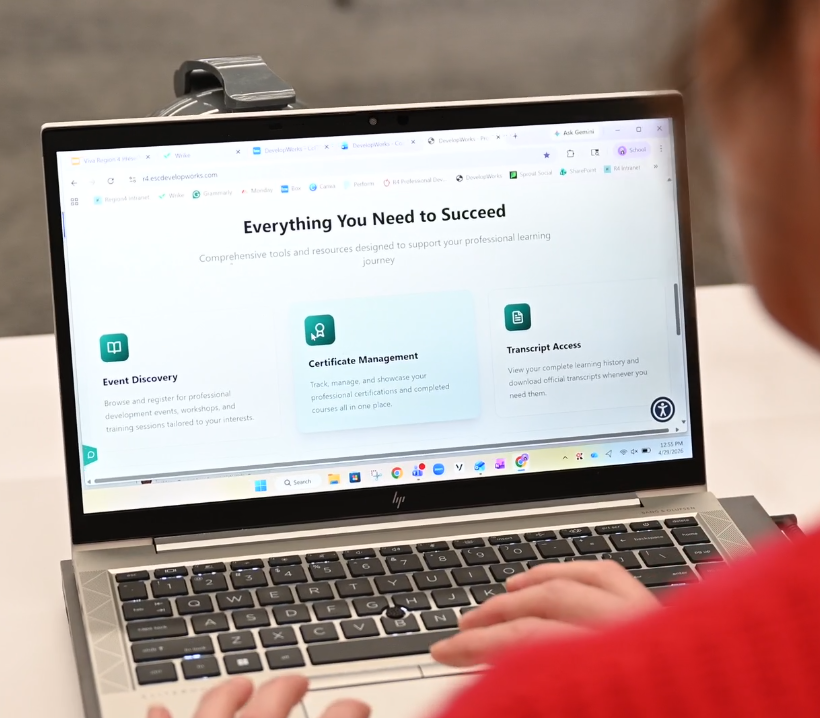
From escWorks® to escDevelopWorks™: More Than an Update
For more than 15 years, escWorks® has helped districts, charter schools, educators, and staff discover professional learning opportunities, register for sessions, and track completed learning.
escDevelopWorks™ builds on that trusted foundation while elevating the user experience to new heights with advanced technology and a modern, user-friendly interface. Current users will still have access to the tools they rely on, but escDevelopWorks™ provides a faster, more powerful, AI-driven experience that simplifies routine tasks and improves the professional learning experience.
This transition is more than a system update. It’s a transformation.
Get the Details on escDevelopWorks™
Read our latest blog to learn what Region 4 professional learners need to know about the new escDevelopWorks™ platform.